Microsoft Excel can generate random values for simulations, test data, giveaways, sampling, scheduling, games, and statistical models. Most tasks require no add-in or macro because Excel includes formulas for random decimals, integers, dates, percentages, and arrays.
The best formula depends on what you need. Use RAND() for a decimal between 0 and 1, RANDBETWEEN() for a whole number within a chosen range, and RANDARRAY() when you want many random values from a single formula.
Microsoft describes RAND as returning an evenly distributed real number from 0 up to, but not including, 1. RANDBETWEEN returns a random integer between specified limits, while RANDARRAY can create a multirow and multicolumn array with custom limits.
This guide explains how to use a random number generator in Excel step by step, including how to generate numbers, dates, percentages, random list items, and unique results.
Key Takeaways
- Use
=RAND()to generate a random decimal from 0 to less than 1. - Use
=RANDBETWEEN(bottom,top)to generate a random whole number. - Use
=RANDARRAY(rows,columns,min,max,whole_number)to generate multiple values. - Random formulas may change whenever Excel recalculates the worksheet.
- Copy generated cells and paste them as values to freeze the results.
- Use dynamic-array formulas when you need unique or shuffled numbers.
What Is a Random Number Generator in Excel?
A random number generator in Excel is normally a worksheet formula that returns a new value based on conditions you define.
For example, you can ask Excel to return any integer from 1 to 100, any decimal from 5 to 10, or a block containing 50 random values. You can also use random formulas to choose an item from a list, shuffle names, generate test dates, or create sample data.
They can assign groups, select customer samples, create test dates, or fill a worksheet with sample records.
Excel’s random formulas are volatile. This means Excel reevaluates them during worksheet recalculation, and any cells that depend on them may also update.
Microsoft notes that excessive use of volatile formulas can slow recalculation in large workbooks. Therefore, they should be used carefully when working with thousands of rows or complicated formulas.
Which Excel Random Number Function Should You Use?
Excel offers three main functions for ordinary random-number tasks. Understanding the difference between them will help you choose the right formula.
RAND Function
The RAND function uses the following syntax:
=RAND()
It returns a decimal number greater than or equal to 0 and less than 1.
Possible results include:
- 0.1458
- 0.7312
- 0.9984
The result changes when Excel recalculates the worksheet.
RAND works well for probabilities, simulations, decimal test data, and random sorting.
RANDBETWEEN Function
The RANDBETWEEN function uses this syntax:
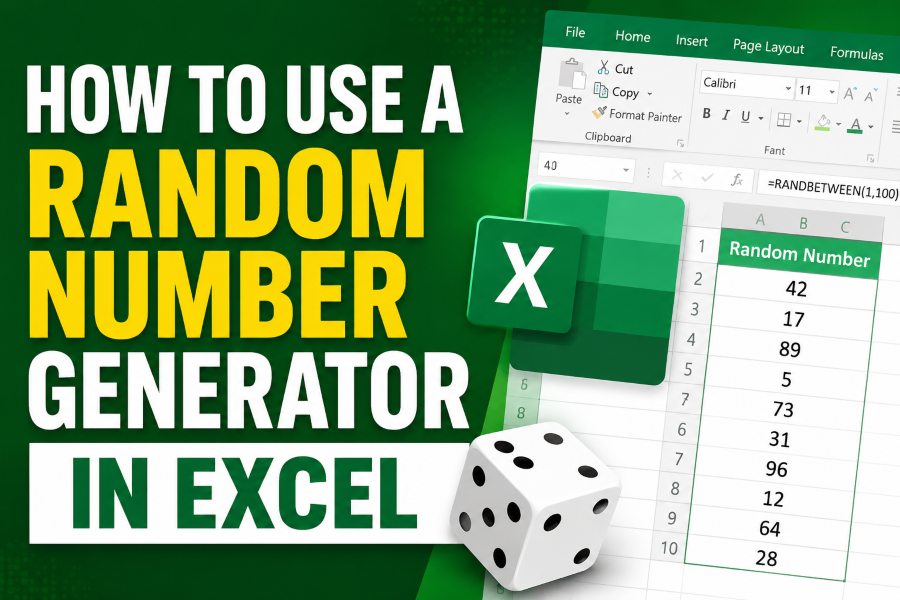
=RANDBETWEEN(bottom,top)
For example:
=RANDBETWEEN(1,100)
This formula returns a whole number from 1 through 100. Both the minimum and maximum values can appear in the result.
A new random integer is produced whenever the worksheet recalculates.
RANDBETWEEN is a simple choice for dice rolls, raffle numbers, scores, quantities, numbered selections, and random IDs used in sample data.
RANDARRAY Function
RANDARRAY generates several random values from one formula.
Its syntax is:
=RANDARRAY(rows,columns,min,max,whole_number)
For example:
=RANDARRAY(10,1,1,100,TRUE)
This formula creates 10 rows and one column of random whole numbers between 1 and 100.
The final argument is set to TRUE, which tells Excel to return integers. Use FALSE when you want decimal values.
Microsoft states that RANDARRAY can define the number of rows and columns, minimum and maximum values, and whether the results should be whole numbers or decimals. It is available in dynamic-array versions such as Microsoft 365, Excel 2024, and Excel 2021.
How to Use a Random Number Generator in Excel Step by Step
Select a cell, type the appropriate formula, press Enter, and copy or fill the formula into more cells when needed.
The following examples explain the most common ways to generate random values in Excel.
Generate a Random Decimal Between 0 and 1
Select an empty cell and enter:
=RAND()
Press Enter, and Excel displays a random decimal.
To create additional values, drag the fill handle down or copy the formula into other cells.
This method works well when each row needs a random probability or decimal value. You can use Excel’s number-formatting options to show more or fewer decimal places.
Generate a Random Whole Number Within a Range
To generate an integer between 10 and 50, use:
=RANDBETWEEN(10,50)
The first number is the minimum, and the second number is the maximum. Both limits can appear in the results.
You can also refer to worksheet cells instead of typing fixed limits.
Suppose cell B2 contains the minimum number and cell C2 contains the maximum number. Enter:
=RANDBETWEEN(B2,C2)
You can now adjust the random-number range by changing the values in B2 and C2. You do not have to edit the formula every time.
Generate Several Random Numbers at Once
In a supported version of Excel, enter:
=RANDARRAY(20,1,1,500,TRUE)
This generates 20 random integers between 1 and 500 in a single column.
For a five-row by four-column grid of random decimal values between 10 and 20, use:
=RANDARRAY(5,4,10,20,FALSE)
RANDARRAY automatically fills the requested area. The destination cells must be empty. If existing content, merged cells, or other objects block the output range, Excel may return a #SPILL! error.
How to Generate Random Decimals Between Two Numbers
RAND normally returns a value between 0 and less than 1. However, you can scale it to generate a decimal within almost any range.
Use this formula structure:
=RAND()*(maximum-minimum)+minimum
To generate a random decimal between 25 and 75, use:
=RAND()*(75-25)+25
The shorter equivalent is:
=RAND()*50+25
This produces values greater than or equal to 25 and less than 75.
To control the number of decimal places, combine RAND with the ROUND function:
=ROUND(RAND()*(75-25)+25,2)
The number 2 tells Excel to round the result to two decimal places.
For a random price between $10 and $100, use:
=ROUND(RAND()*90+10,2)
Apply Currency formatting afterward to display the result as a monetary amount.
How to Generate Random Percentages in Excel
Percentages in Excel are stored as decimal values. Therefore, =RAND() can be displayed directly as a percentage.
Enter:
=RAND()
Then apply Percentage formatting.
For example, a generated value of 0.42 will appear as 42%.
To generate a random percentage between 20% and 80%, use:
=RAND()*(80%-20%)+20%
To return whole percentage points only, use:
=RANDBETWEEN(20,80)/100
Format the result as a percentage with zero decimal places.
This technique can help you create sample conversion rates, completion percentages, probability values, discount rates, and fictional performance reports.
How to Generate Random Dates in Excel
Excel stores dates as serial numbers. This allows RANDBETWEEN to select a number between two date values.
Microsoft’s DATE function returns the serial number for a specified date, making it suitable for use inside a random-date formula.
To generate a random date during 2026, use:
=RANDBETWEEN(DATE(2026,1,1),DATE(2026,12,31))
After entering the formula, apply Date formatting to the cell.
If Excel initially displays a number instead of a date, the formula is probably working correctly. The cell simply needs to be formatted as a date.
You can also reference cells containing the starting and ending dates:
=RANDBETWEEN(A2,B2)
In this example, A2 contains the earliest date and B2 contains the latest date.
This method is useful for project simulations, sample transactions, fictional orders, testing databases, and creating demonstration employee records. It should not be used to replace actual contractual, financial, or compliance dates.
How to Pick a Random Name or Item From a List
Suppose a list of names is stored in cells A2:A11.
Use this formula:
=INDEX(A2:A11,RANDBETWEEN(1,ROWS(A2:A11)))
The formula contains three important parts:
ROWS(A2:A11)counts how many entries are in the list.RANDBETWEENgenerates a random position.INDEXreturns the item stored at that position.
The formula automatically adjusts the maximum selection number based on the size of the range.
Blank cells inside the source range may produce blank results. Keep the list continuous or remove blank entries before using the formula.
This method can randomly select a student, customer, product, task, employee, team member, or prize winner.
For formal contests, document the selection process and preserve the final result so the chosen winner does not change during recalculation.
How to Shuffle a List Randomly
A widely compatible way to shuffle a list is to create a random helper column.
Suppose your original list is in A2:A20:
- Enter
=RAND()in cell B2. - Fill the formula down through B20.
- Select columns A and B.
- Open the Sort options.
- Sort by column B from smallest to largest.
Sorting by the random helper values rearranges the original list.
In modern Excel, you can shuffle the same list with a single formula:
=SORTBY(A2:A20,RANDARRAY(ROWS(A2:A20)))
SORTBY rearranges the source list according to the values generated by RANDARRAY. Microsoft describes SORTBY as sorting an array based on the values in a corresponding range or array.
The order may change whenever Excel recalculates. Copy the shuffled list and paste it as values when you need to preserve the order.
How to Generate Unique Random Numbers Without Duplicates
RANDBETWEEN can produce duplicate values because every cell is calculated independently.
For example, when generating 20 numbers between 1 and 100, the same number may appear more than once. This is normal behavior.
If you need 10 unique numbers between 1 and 100 in modern Excel, use:
=TAKE(SORTBY(SEQUENCE(100),RANDARRAY(100)),10)
This formula performs four actions:
- SEQUENCE generates the numbers 1 through 100.
- RANDARRAY creates random sorting values.
- SORTBY shuffles the numbers.
- TAKE returns the first 10 numbers from the shuffled list.
Microsoft documents SEQUENCE as a function that creates sequential numbers in an array and SORTBY as a function that sorts one array according to another.
If TAKE is unavailable in your version, display the complete shuffled sequence and use the first 10 values.
The requested quantity cannot exceed the available range. For example, you cannot generate 101 unique integers when the available numbers are only 1 through 100.
How to Stop Random Numbers From Changing
One of the most important parts of learning how to use a random number generator in Excel is understanding recalculation.
RAND, RANDBETWEEN, and RANDARRAY are designed to produce new results when Excel recalculates the worksheet.
To freeze the current random values:
- Select the cells containing the random formulas.
- Press Ctrl+C to copy them.
- Right-click the selected range.
- Choose Paste Special.
- Select Values.
- Press Enter.
Excel replaces the formulas with their current results. The numbers will no longer change during recalculation.
A practical workflow is to keep the formulas on one worksheet and paste static results into a separate worksheet named “Final Results.”
This preserves the original generator while giving you a permanent copy of the selected numbers.
Common Problems and How to Fix Them
The Random Numbers Keep Changing
This is expected behavior because Excel’s random functions are volatile.
Copy the generated results and paste them as values when they must remain fixed.
RANDARRAY Returns a #SPILL! Error
Clear the cells in the expected output area.
Existing values, merged cells, or restricted worksheet layouts may prevent RANDARRAY from filling the necessary cells. Microsoft associates #SPILL! errors with dynamic-array results that cannot populate their intended output area.
RANDBETWEEN Returns an Error
Make sure the bottom value is not greater than the top value.
Both arguments must also contain valid numbers or cell references that resolve to numeric values.
Duplicate Random Numbers Appear
Duplicate values are normal when using RAND, RANDBETWEEN, or RANDARRAY.
Use a shuffled SEQUENCE formula when every generated number must be unique.
A Random Date Appears as a Number
Apply Date formatting to the cell.
Excel stores dates as serial numbers so that they can be used in calculations.
The Excel Workbook Becomes Slow
Large numbers of volatile formulas can increase recalculation time.
Generate only the amount of data you need, replace completed formulas with values, and avoid applying random formulas to entire columns unnecessarily.
Best Practices for Using Excel Random Numbers
Use the simplest formula that meets your requirements. RANDBETWEEN is normally easier to understand and audit than a complicated formula when you only need whole numbers.
Clearly label the minimum number, maximum number, quantity, and purpose of each generated dataset. This makes the workbook easier for other users to understand.
Preserve an untouched copy of the original source list before randomizing names, products, tasks, or customer information.
Freeze approved results so they cannot change when someone opens, edits, or recalculates the workbook.
After generating the results, confirm that:
- All values remain within the intended range.
- Date cells use the correct format.
- Percentage values are displayed properly.
- Unique-number formulas contain no duplicates.
- Final selections have been pasted as static values.
Excel’s worksheet functions are appropriate for analysis, examples, simulations, and everyday random selections.
Do not use RAND, RANDBETWEEN, or RANDARRAY to create passwords, access tokens, encryption keys, or other security-sensitive values. Those tasks require a security-grade random-number generator.
Frequently Asked Questions
What Formula Generates a Random Number From 1 to 100 in Excel?
Use:
=RANDBETWEEN(1,100)
The formula returns a whole number between 1 and 100, including both limits.
How Do I Generate a Random Decimal in Excel?
Use:
=RAND()
This generates a decimal from 0 to less than 1.
To generate a decimal within another range, use:
=RAND()*(maximum-minimum)+minimum
Can Excel Generate Several Random Numbers With One Formula?
Yes. Use RANDARRAY in a supported version of Excel.
For example:
=RANDARRAY(10,1,1,50,TRUE)
This returns 10 random integers between 1 and 50.
Why Does My Random Number Change When I Edit the Worksheet?
Excel’s random-number functions are volatile and are reevaluated when the worksheet recalculates.
Copy the results and paste them as values to keep them fixed.
How Do I Generate Random Numbers Without Duplicates?
Create a complete sequence of the allowed numbers, shuffle it with SORTBY and RANDARRAY, and return the required number of results.
This is more reliable than generating each number independently.
Can Excel Randomly Select a Name?
Yes. If names are stored in A2:A11, use:
=INDEX(A2:A11,RANDBETWEEN(1,ROWS(A2:A11)))
The formula returns one randomly selected name from the range.
Is RANDARRAY Available in Every Excel Version?
No. Microsoft lists RANDARRAY for dynamic-array editions including Microsoft 365, Excel 2024, and Excel 2021 across supported platforms.
Older desktop editions may require RAND or RANDBETWEEN formulas to be copied across multiple cells.
Conclusion
Knowing how to use a random number generator in Excel makes it easier to create samples, simulations, schedules, test data, shuffled lists, and randomized selections.
Use RAND when you need a decimal between 0 and less than 1. Use RANDBETWEEN when you need one random whole number within a specified range. Use RANDARRAY when you want to generate several random values from a single formula.
The most important practical detail is that these functions recalculate. Once you are satisfied with a generated dataset, copy the cells and paste them as values to prevent the results from changing.
When you need unique numbers, shuffle a complete sequence instead of generating every value independently. With these formulas and best practices, Excel can handle most everyday randomization tasks quickly and efficiently.